Connecting AUHPCS to Box Using Globus
To connect your AUHPCS user data to your Box storage, open Globus in your web browser and follow these steps:
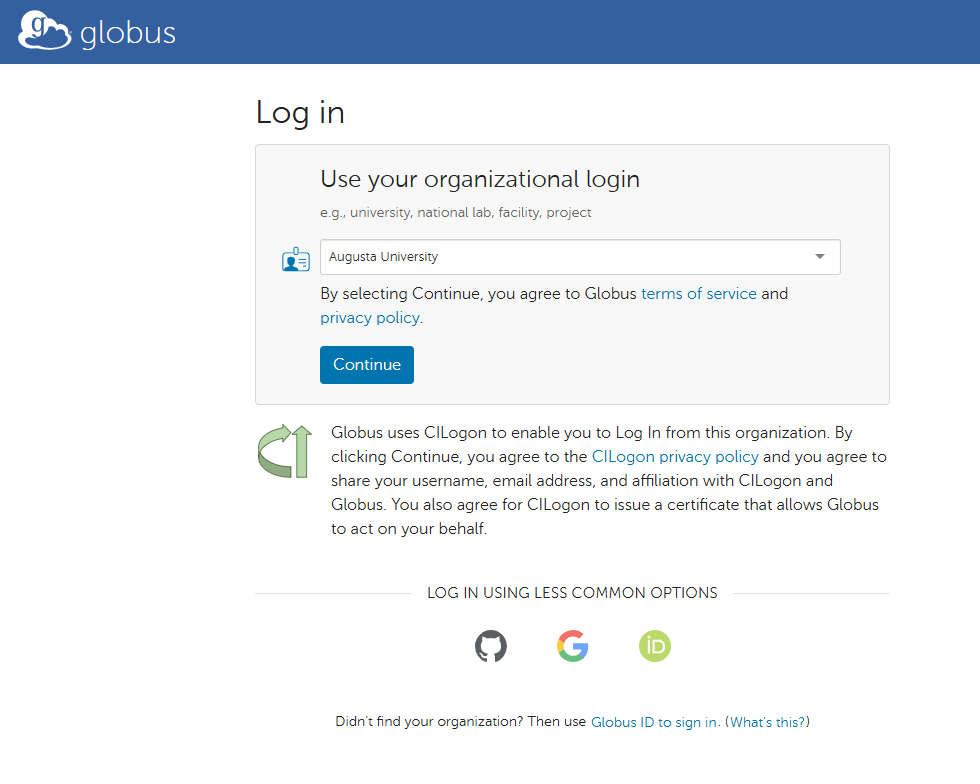
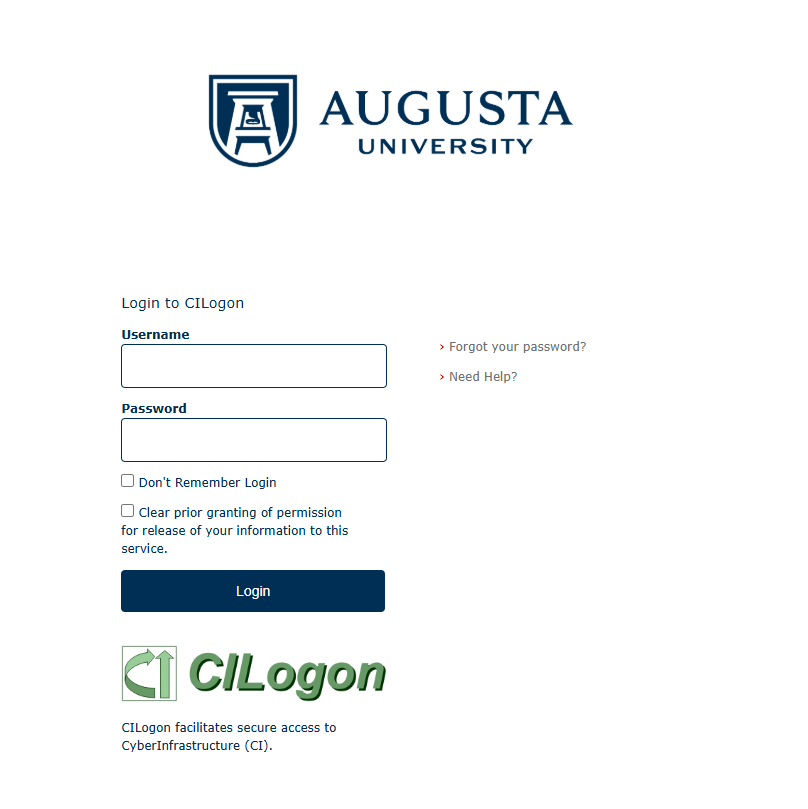
Begin by logging into your Globus account. Select Augusta University as your organizational login and sign in using your Augusta University username and password.
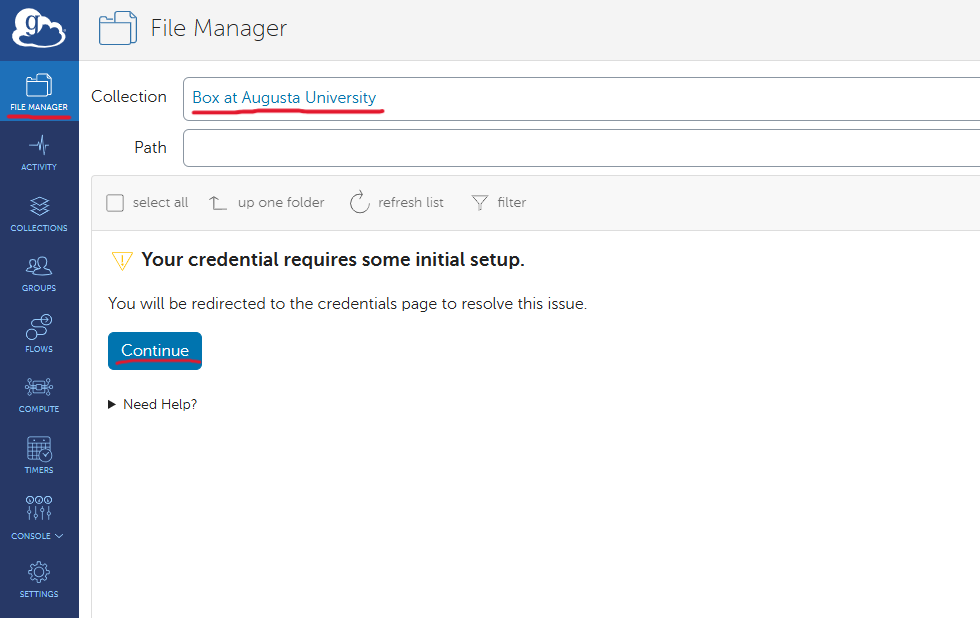
Once you are logged in, navigate to the File Manager tab on the sidebar and search for Box at Augusta University. Globus will request permission to manage your data, so click Continue to proceed.
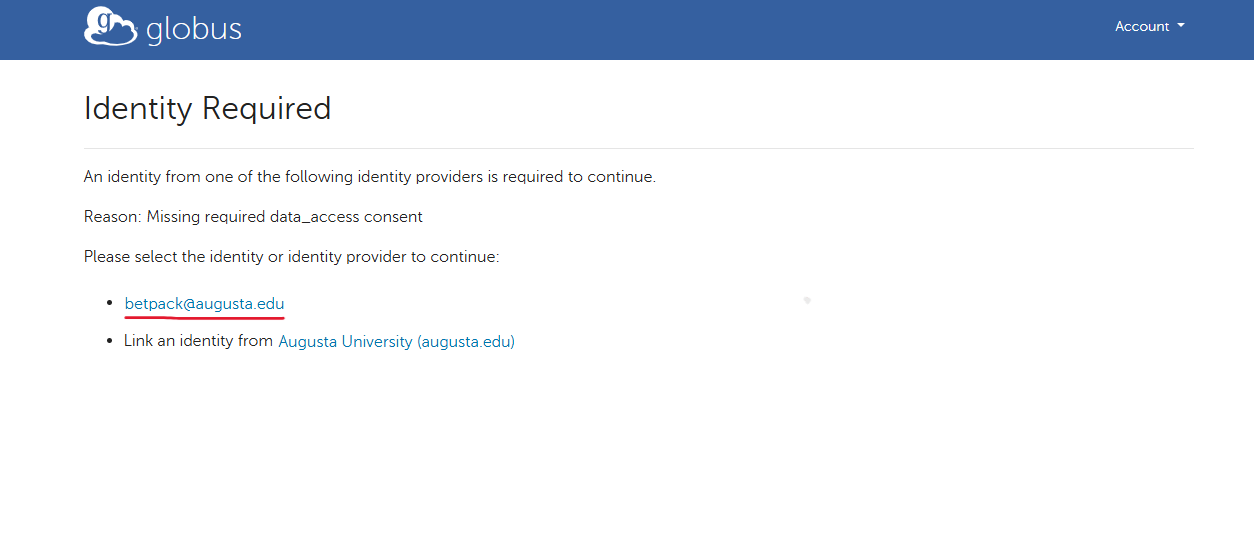
When prompted, choose your augusta.edu email as your identity and then select Allow to grant Globus permission to manage data transfers.
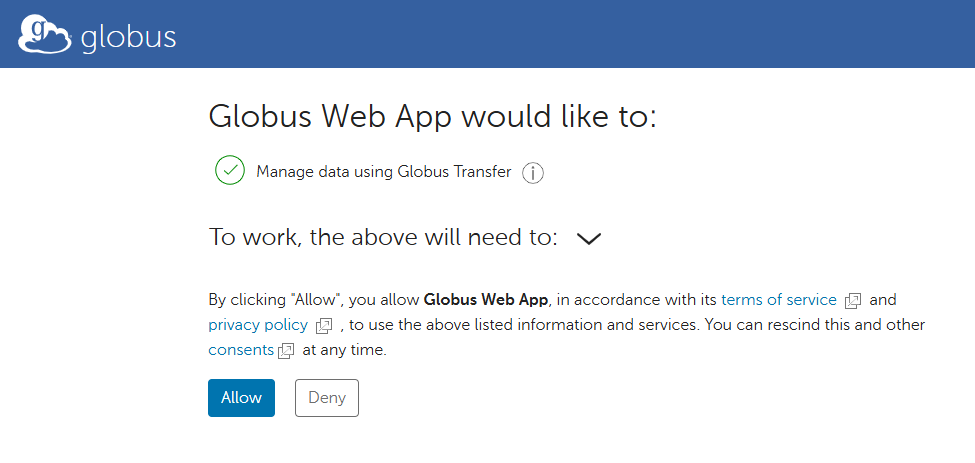
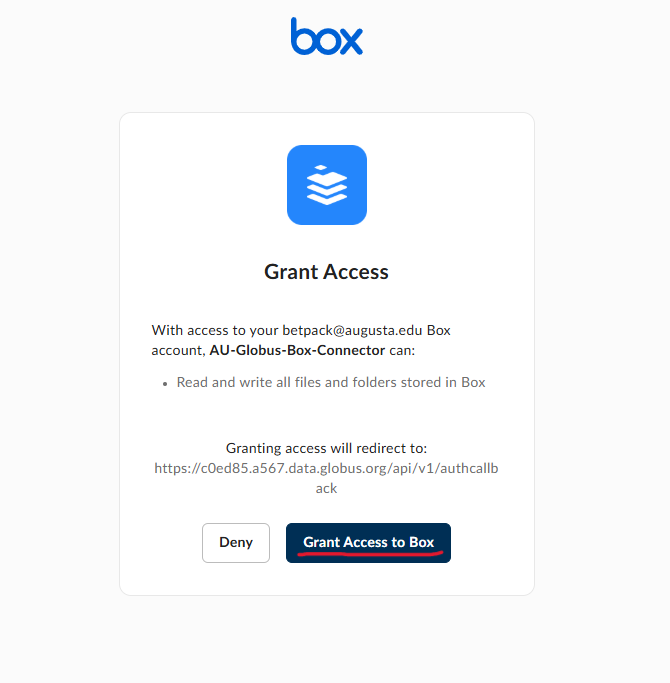
Globus will also require permission to access your Box account. Click Continue, then select Grant Access when the Box request window appears. Enter your Augusta University email to provision credentials and click Continue.
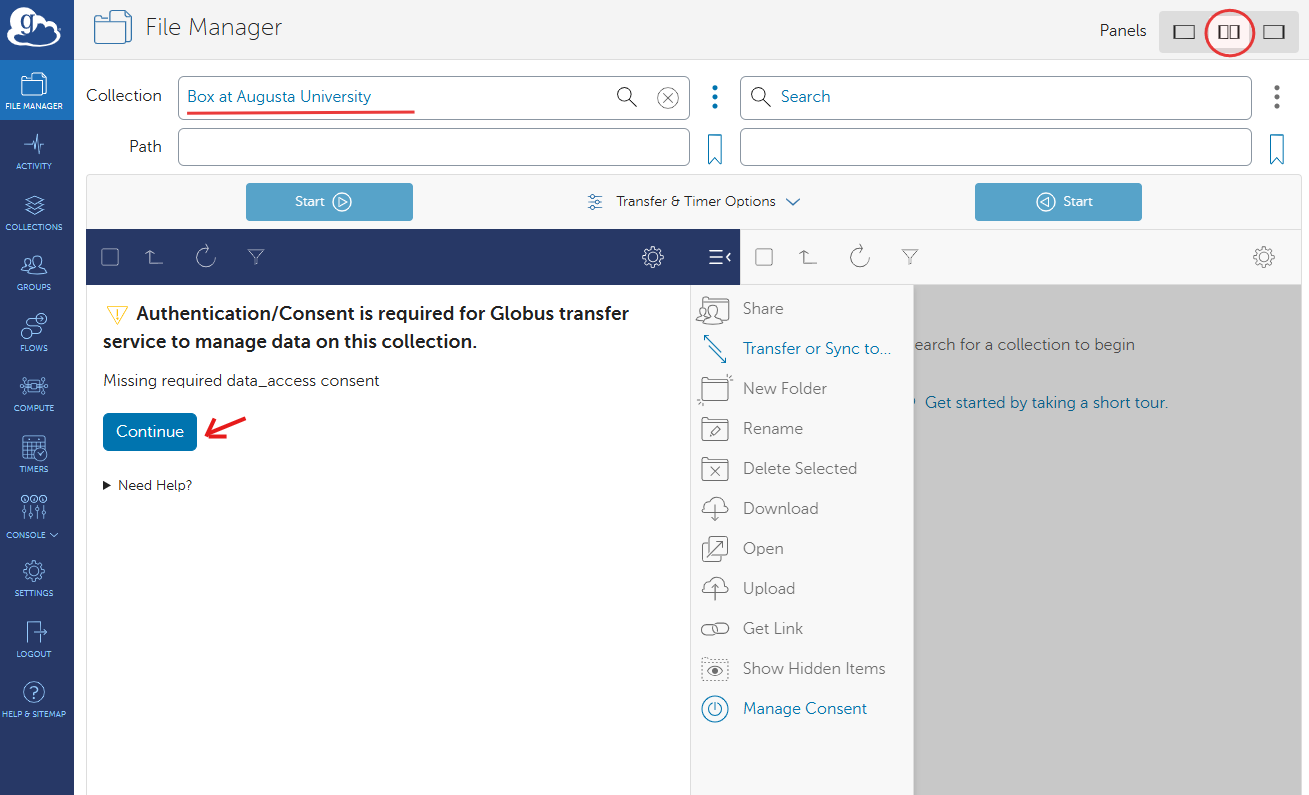
To view both your Box data and your AUHPCS data simultaneously, switch to the two-panel layout by selecting the middle option in the panel settings at the top right of the screen. In the new panel, search for AUHPCS – user data to open your cluster storage collection.
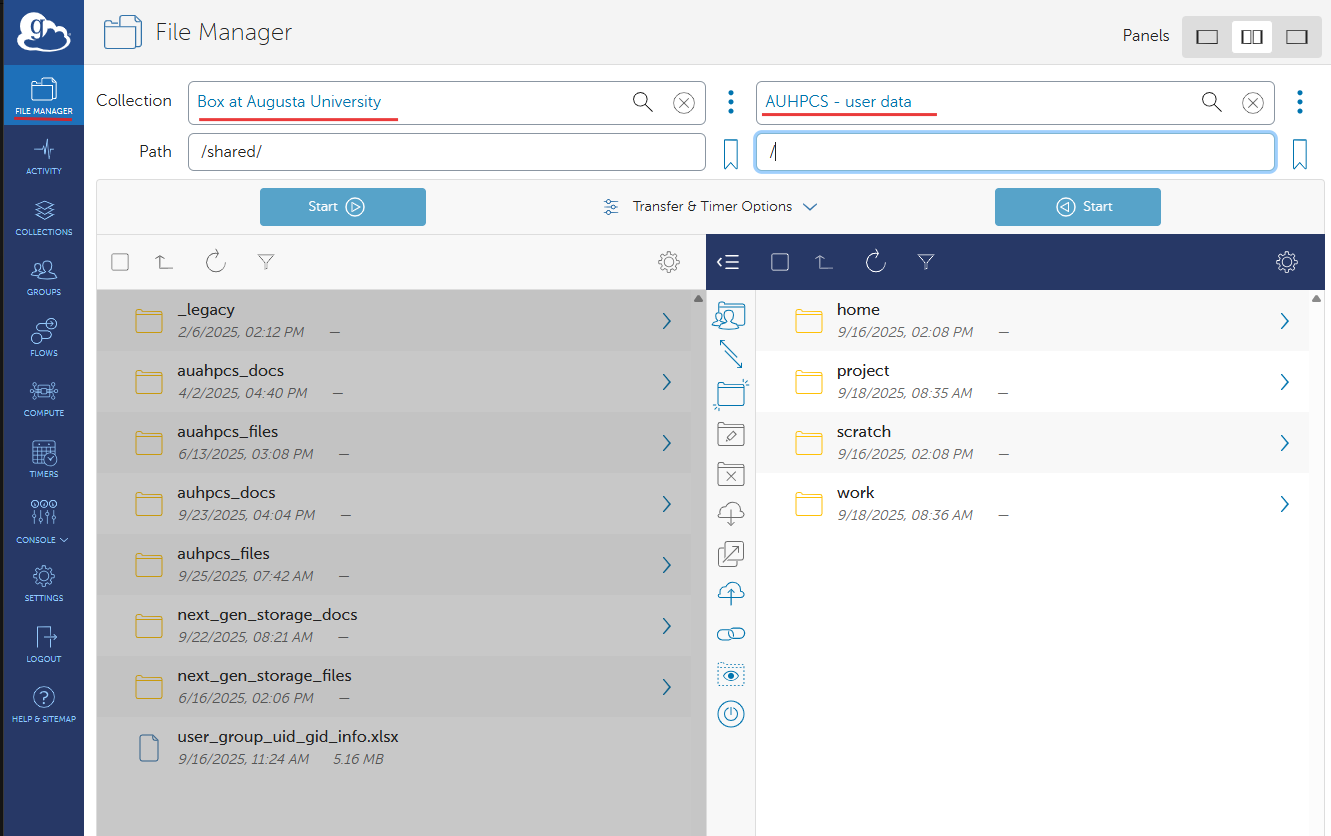
Your Globus account is now connected to your Box account, and you can begin transferring data between the two locations.
For further assistance, visit our Support Page or contact our team at auhpcs_support@augusta.edu.